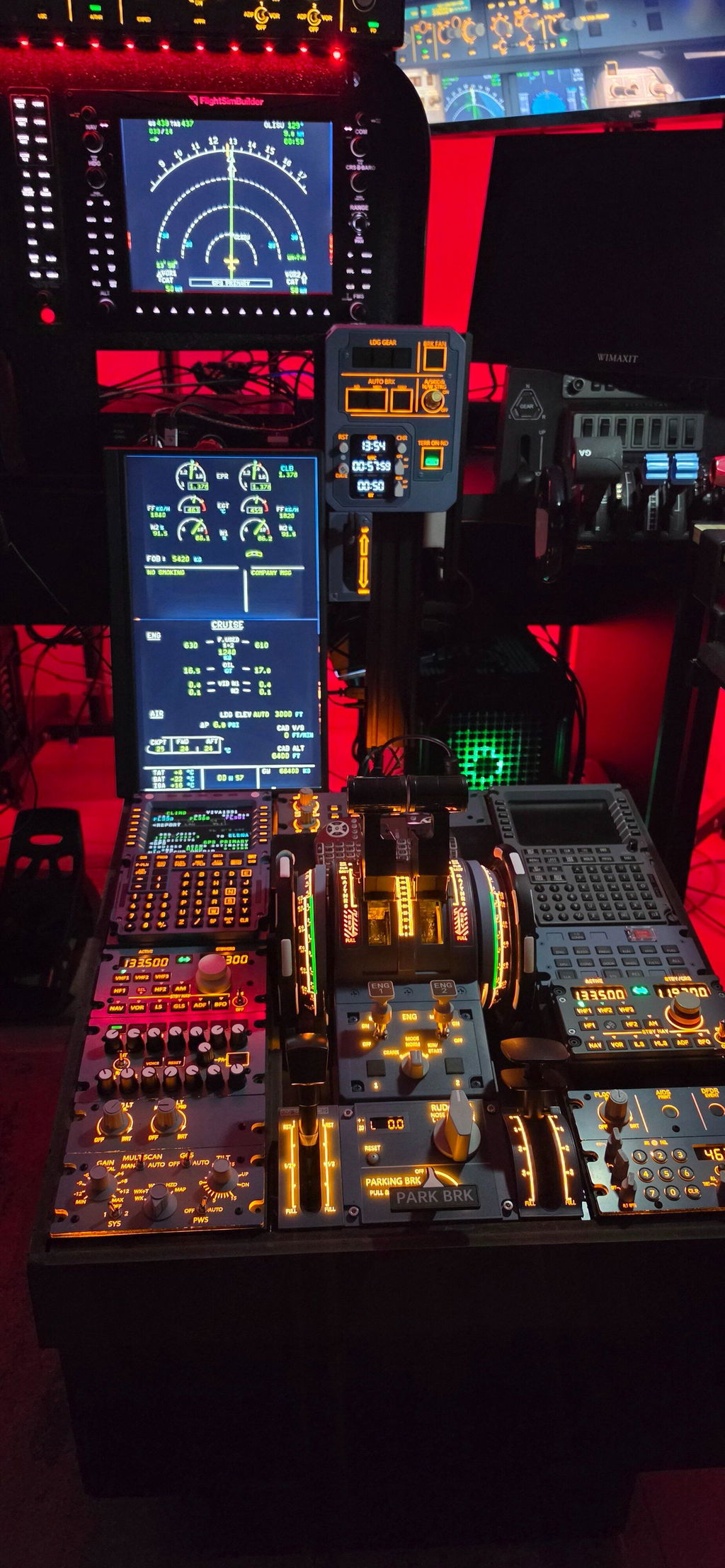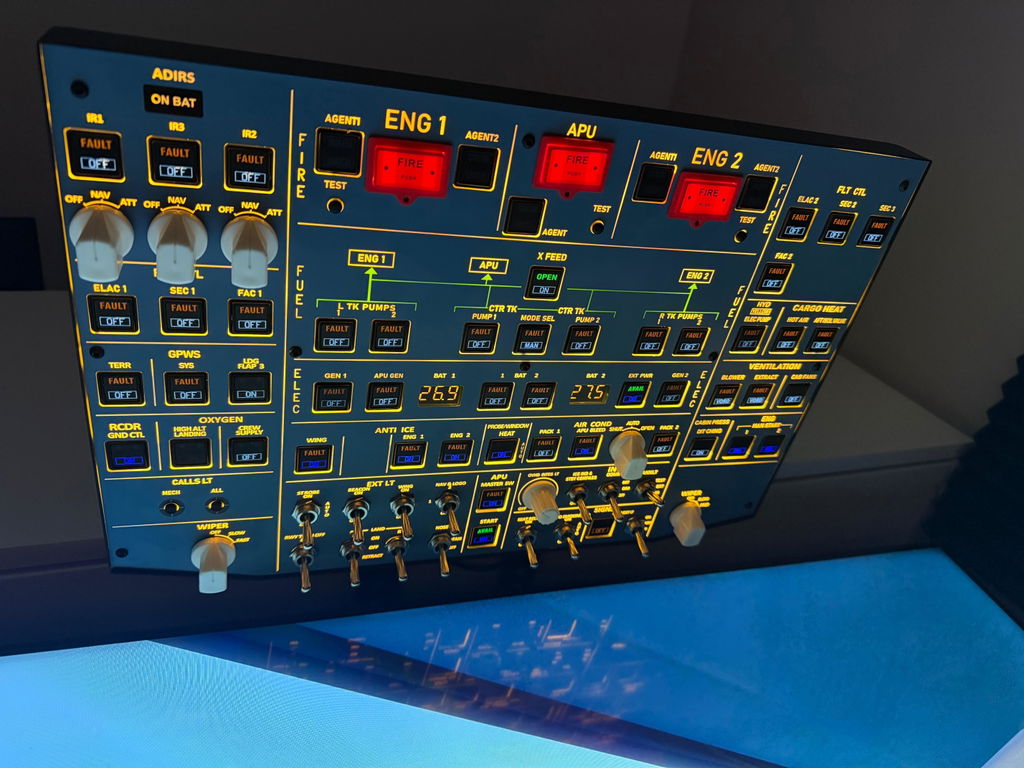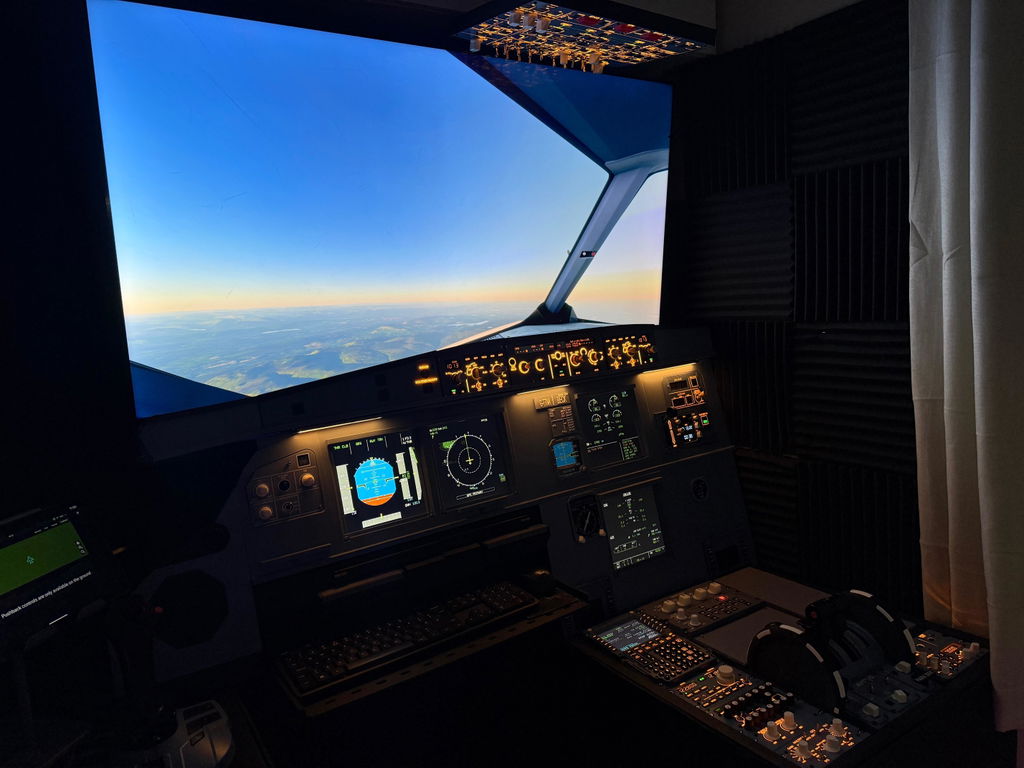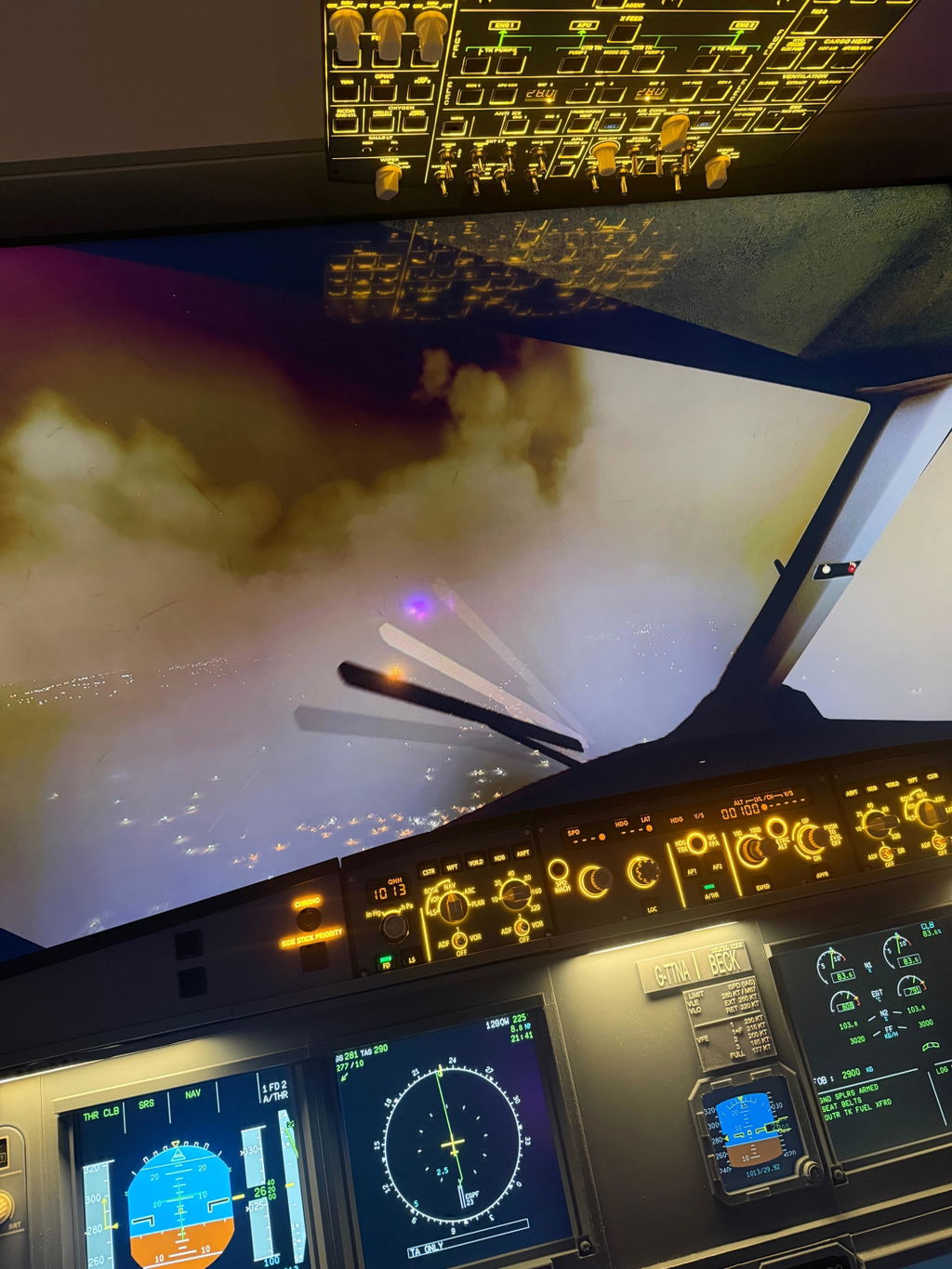

From Keyboard to Cockpit: Build a More Immersive Desktop Helicopter Simulator
Flying a helicopter in a simulator is a challenge of its own. You need to manage direction, collective pitch, and throttle while keeping the aircraft stable. Keyboard and gamepad controls can get you started, but as you spend more time flying, you may want a setup that feels more natural and gives you more direct control.
The good news? You don't need a full-size cockpit to take your helicopter simulation experience to the next level. A joystick, a dedicated helicopter collective, and a compatible desk mount can help you build a more organized and immersive desktop setup.
1. Why Upgrade Your Helicopter Sim Controls?
If you've been flying with a keyboard or gamepad, you already know the basics. But controlling a helicopter involves coordinating several inputs at once. Searching for the right key or moving between different controls can interrupt the flow of your flight.
Dedicated flight simulation hardware gives each important control a more natural physical interface. Instead of relying entirely on buttons and keyboard commands, you can use your hands to operate separate controls for different tasks.
- More intuitive inputs: Use physical controls instead of relying entirely on keyboard commands.
- Clearer control separation: Keep directional control and collective/throttle inputs on separate devices.
- A more immersive setup: Build a desktop cockpit that feels more connected to the aircraft you're flying.
- Room to grow: Start with a few essential controls and expand your setup over time.
The goal isn't to make flying effortless. It's to make your controls easier to reach, understand, and use while you practice.
2. Start with a Flight Simulation Joystick

The joystick is the foundation of this setup. It provides a physical interface for directional control, allowing you to make control inputs with your hand rather than relying solely on a keyboard or gamepad.
For helicopter simulation, a dedicated joystick can be used for cyclic-related control inputs when correctly configured in your simulator. This lets you focus on making adjustments while practicing turns, maintaining a stable attitude, and maneuvering around the virtual environment.
The exact functions depend on the aircraft and your control bindings, so take a moment to configure each axis and button before your first flight.
Explore the Mechdiy Flight Simulation Joystick →
3. Add a Dedicated Helicopter Collective

A helicopter collective adds another important part of the control experience: a dedicated control for collective pitch, alongside a twist throttle axis.
In a conventional helicopter, collective input changes the pitch of the rotor blades together, affecting lift. The throttle manages engine power, although the exact relationship between throttle and rotor speed depends on the helicopter model and its systems.
With a dedicated collective, you can practice managing these inputs while keeping your other hand on the joystick. This creates a more intuitive division of tasks and gives you a more hands-on way to experience helicopter flight simulation.
What Can You Practice?
- Hovering: Practice making small, coordinated corrections to maintain your position.
- Climbs and descents: Learn how collective input affects lift and vertical movement.
- Coordinated control: Practice using the joystick and collective together instead of treating every input as a separate keyboard command.
- Throttle management: Use the twist throttle axis according to your aircraft and simulator configuration.
A dedicated collective won't automatically make you a better pilot, but it gives you a more direct way to practice the control techniques that make helicopter flying so interesting.
A dedicated collective and twist throttle provide separate physical inputs for helicopter simulation.
Explore the Mechdiy Helicopter Collective →
4. Make Your Desk Work with a Dedicated Desk Mount

You've got your joystick and collective. Now, where should they go?
Not everyone has room for a dedicated cockpit frame. A desk mount offers a practical alternative by securing compatible controls to your desktop and helping keep them in a consistent position during use.
The Mechdiy Flight Simulator Desk Mount features a 30 mm hole-spacing design and an aluminum-alloy construction. Its quick-release design is intended to make mounting and removing compatible equipment more convenient.
Before installation, check your desk thickness, available clearance, mounting hardware, and compatibility with your specific controls. Make sure the mount is securely fastened before flying.
Explore the Mechdiy Flight simulator desk mount →
Why Use a Desk Mount?
- Save space: Build a more capable flight sim setup without committing to a full cockpit.
- Keep controls in place: A properly installed mount helps reduce unwanted movement during use.
- Make setup changes easier: The quick-release design can make it more convenient to switch between flying and everyday desk use.
- Create a more organized workspace: Give your joystick and collective designated mounting positions.

5. How to Build Your Desktop Helicopter Setup
Putting the three components together doesn't have to be complicated. Follow these basic steps to get started.
- Check compatibility. Confirm that the desk mount, joystick, and collective can be installed together in your intended configuration.
- Install the desk mount. Position the mount where you can comfortably reach the controls and secure it according to the product instructions.
- Attach the joystick and collective. Align the mounting holes and fasten the hardware securely.
- Check stability. Gently test the mounted controls and verify that nothing shifts or loosens during normal operation.
- Configure your simulator. Assign the appropriate axes and buttons for your aircraft, including cyclic-related inputs, collective, and throttle where supported.
- Test before takeoff. Check each control in the simulator and confirm that its movement matches the intended input.
6. See the Desk Mount Installation in Action
Prefer watching a hands-on demonstration? Follow the installation video to see how the mounting process works and how the hardware comes together.
7. What Changes When You Upgrade?
The biggest difference isn't simply having more hardware on your desk. It's how the controls work together.
With a joystick for directional inputs, a dedicated collective for collective pitch and twist throttle inputs, and a secure mounting solution, you can build a setup that better reflects the separate control tasks involved in helicopter simulation.
You can also develop your setup gradually. Start with the controls that matter most to you, learn how to configure them, and add other peripherals later if your flying goals call for them.
Whether you're learning your first hover or refining your approach to landing, the right control layout can make practice more engaging and help you focus on the flying itself.
Ready to Upgrade Your Helicopter Sim Setup?
Build your own desktop helicopter simulation setup with these three components:
- Mechdiy Flight Simulation Joystick — for directional control inputs.
- Mechdiy Helicopter Collective with Twist Throttle Axis — for dedicated collective and twist throttle inputs.
- Mechdiy Flight Simulator Desk Mount — for a compatible desktop mounting solution.
Check the compatibility and mounting requirements of each component before ordering.
Save 15% on Your Next Setup
Ready to take your desktop flight simulation setup further?
Use discount code AlexVIP at checkout to get 15% off, subject to applicable offer terms.
Please check the current promotion terms and product eligibility at checkout.
Join the Mechdiy Flight Sim Community
Your setup is only part of the journey. Connect with other flight simulation enthusiasts, share your cockpit builds, exchange setup tips, and discuss your favorite aircraft and simulators with fellow flyers.
Join the Mechdiy Flight Sim Facebook Group →
Have a desktop setup of your own? Share a photo or tell us which control you upgraded first. We'd love to see how you fly!
```